Connect Happy Squid with Obsidian
Happy Squid Tasks enables you to block all unrelated websites and pages while working on a task. With the Happy Squid plugin for Obsidian, you can start a Task from any checkbox in your notes in one click. When you finish it in the Happy Squid extension or app, the checkbox in your note is ticked automatically. You can also bring your Task Goal and a summary of your day into any note.
Set up Obsidian Integration
You only do this once. Setting up the plugin takes about two minutes.
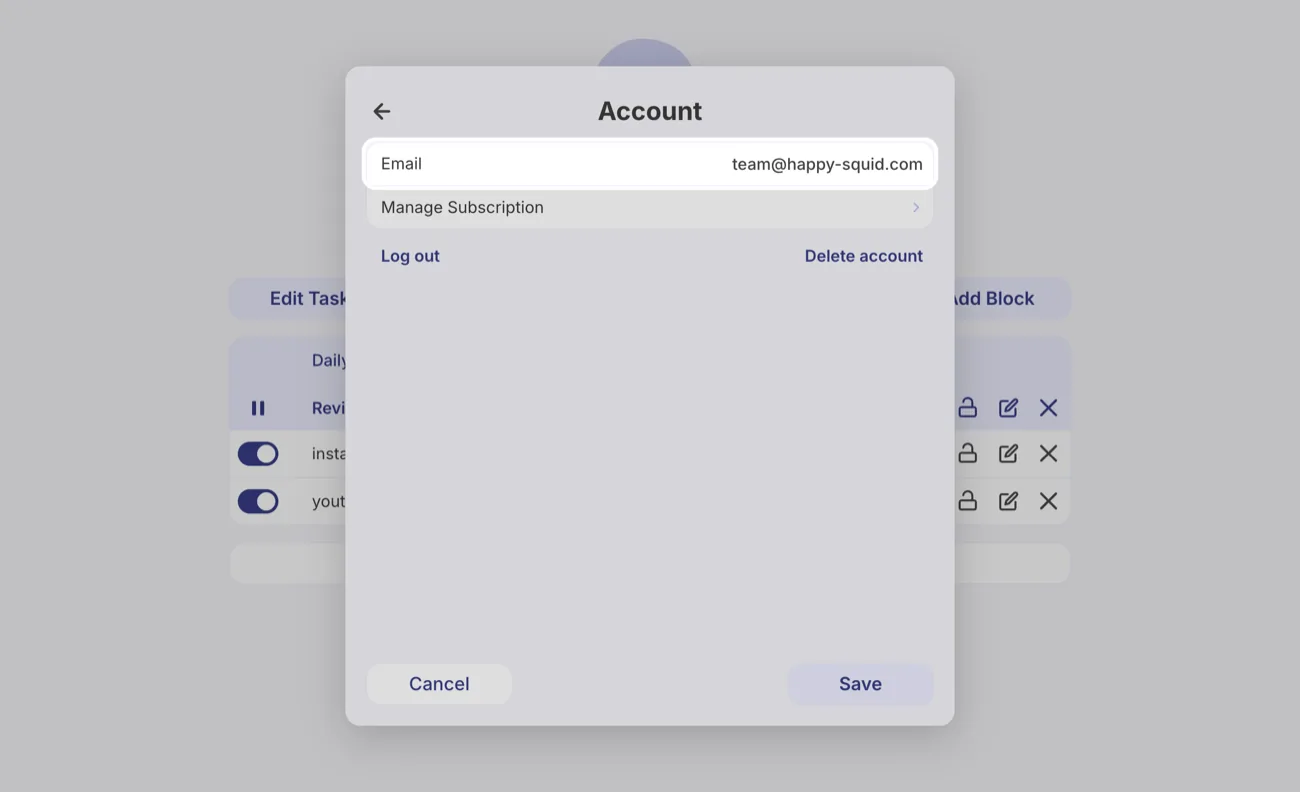
1. Make sure you have an active Happy Squid account. You need to be signed in on your computer in the Happy Squid browser extension or the desktop app. You'll find your email address in Happy Squid under Advanced Settings, then Account.
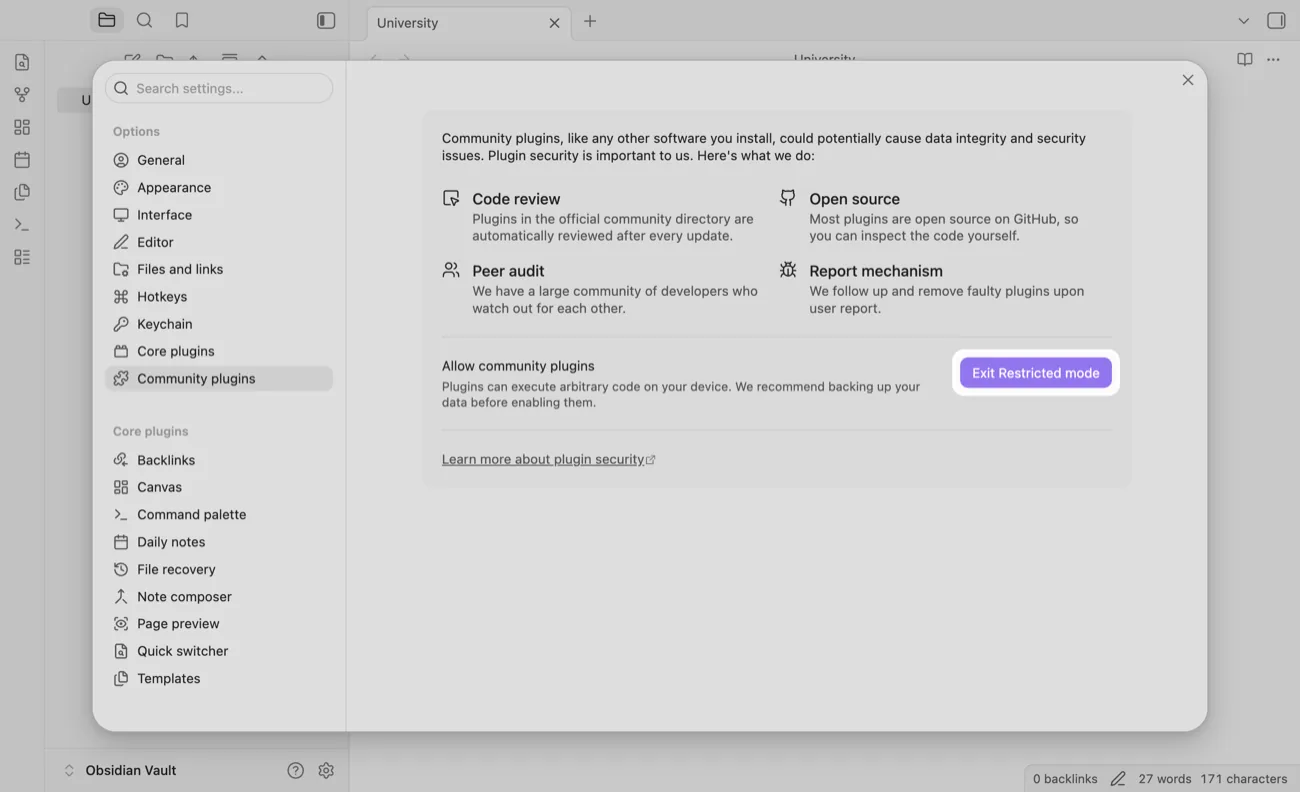
2. In Obsidian, open Settings, choose Community plugins and click Exit Restricted mode. If you already use community plugins, you can skip this step.
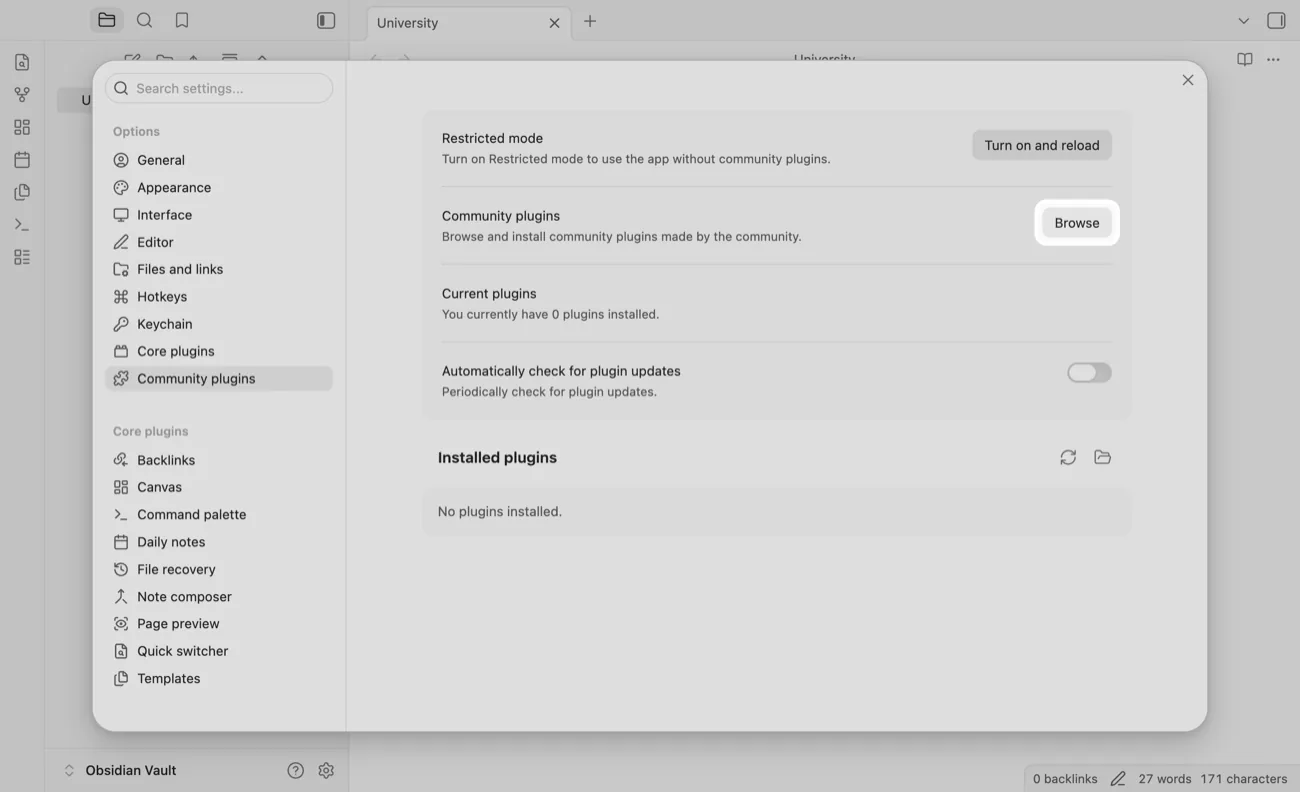
3. Click Browse next to Community plugins.
4. Search for Happy Squid and click the plugin.
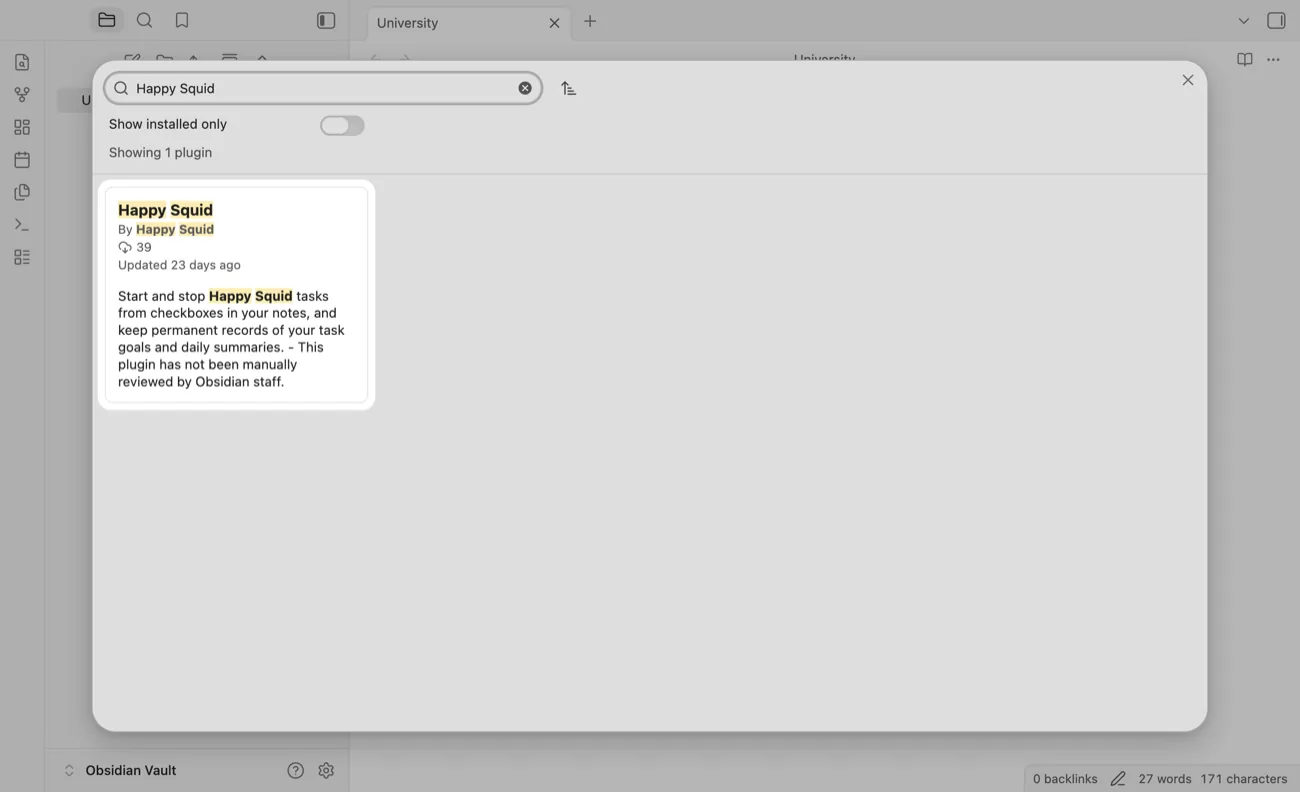
5. Click Install.
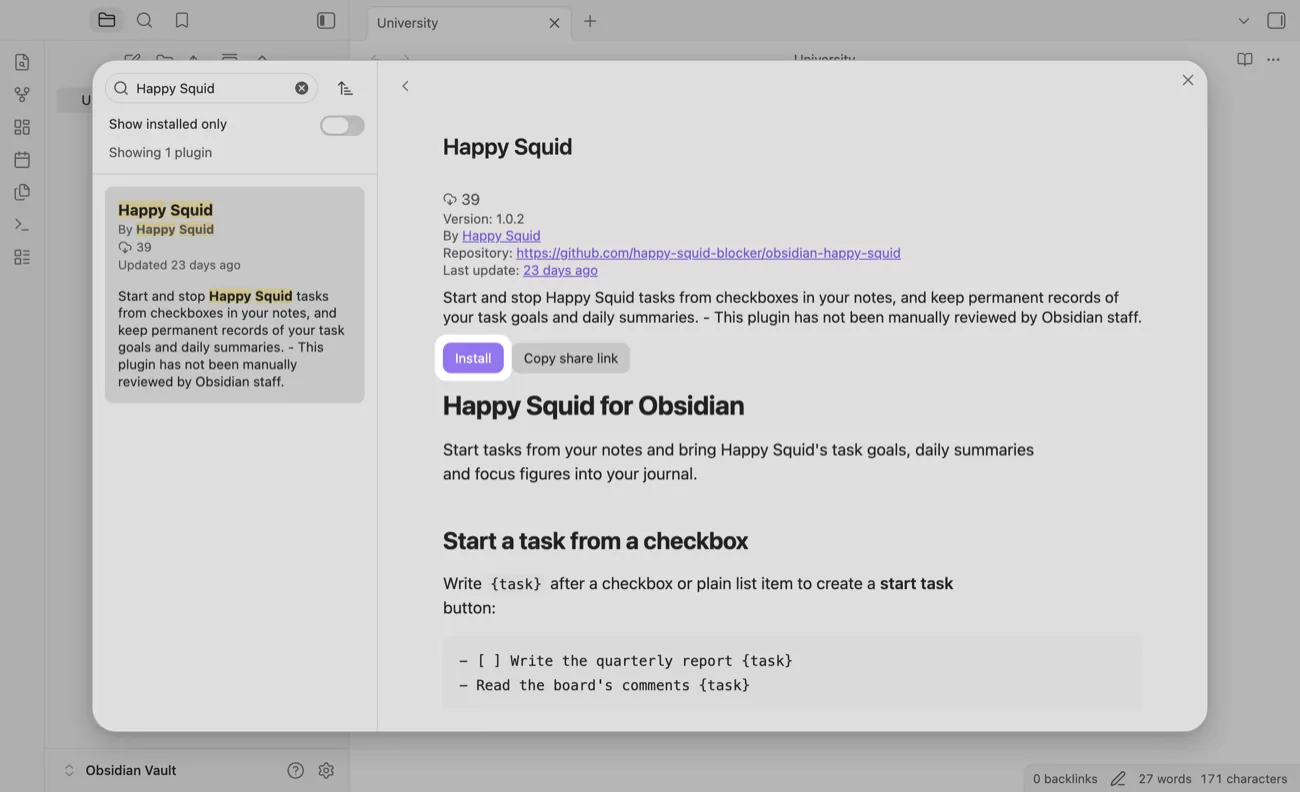
6. Click Enable. Obsidian opens a note called Happy Squid that shows what the plugin can do.
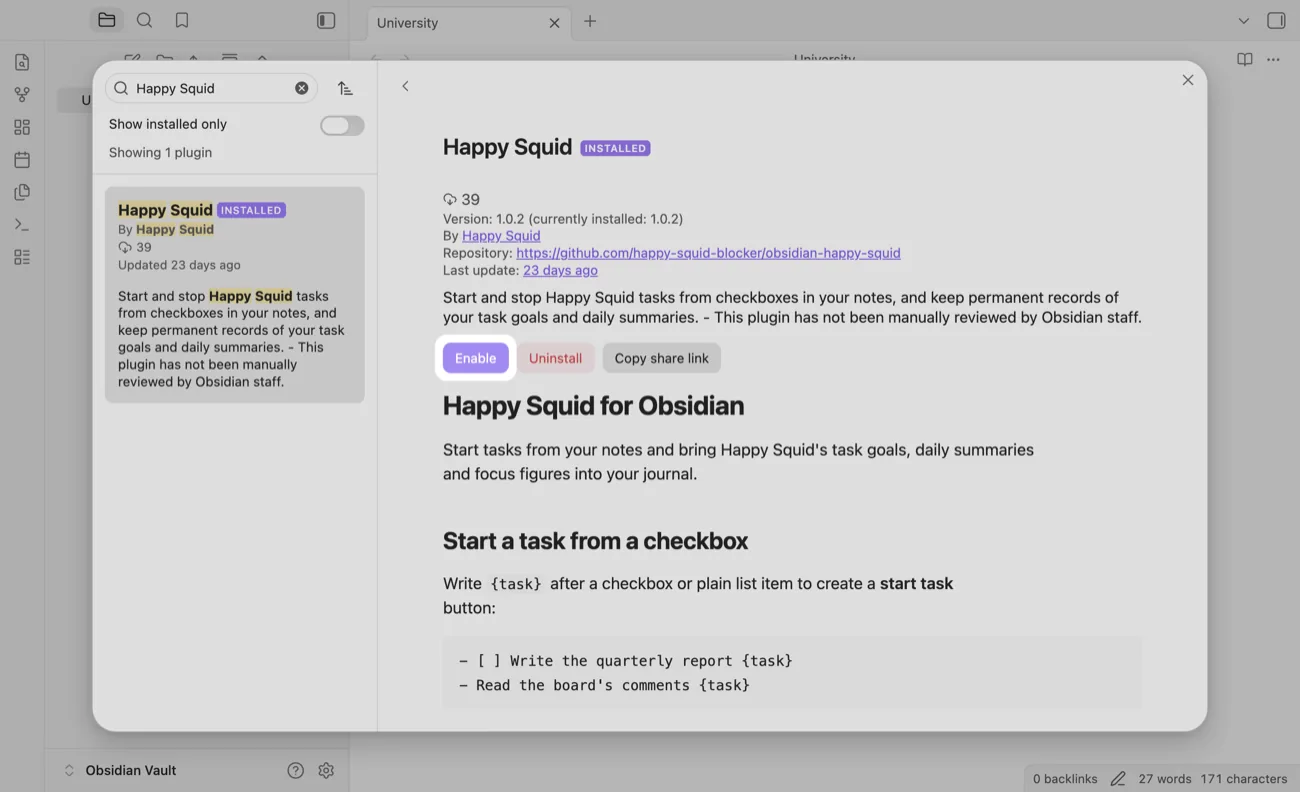
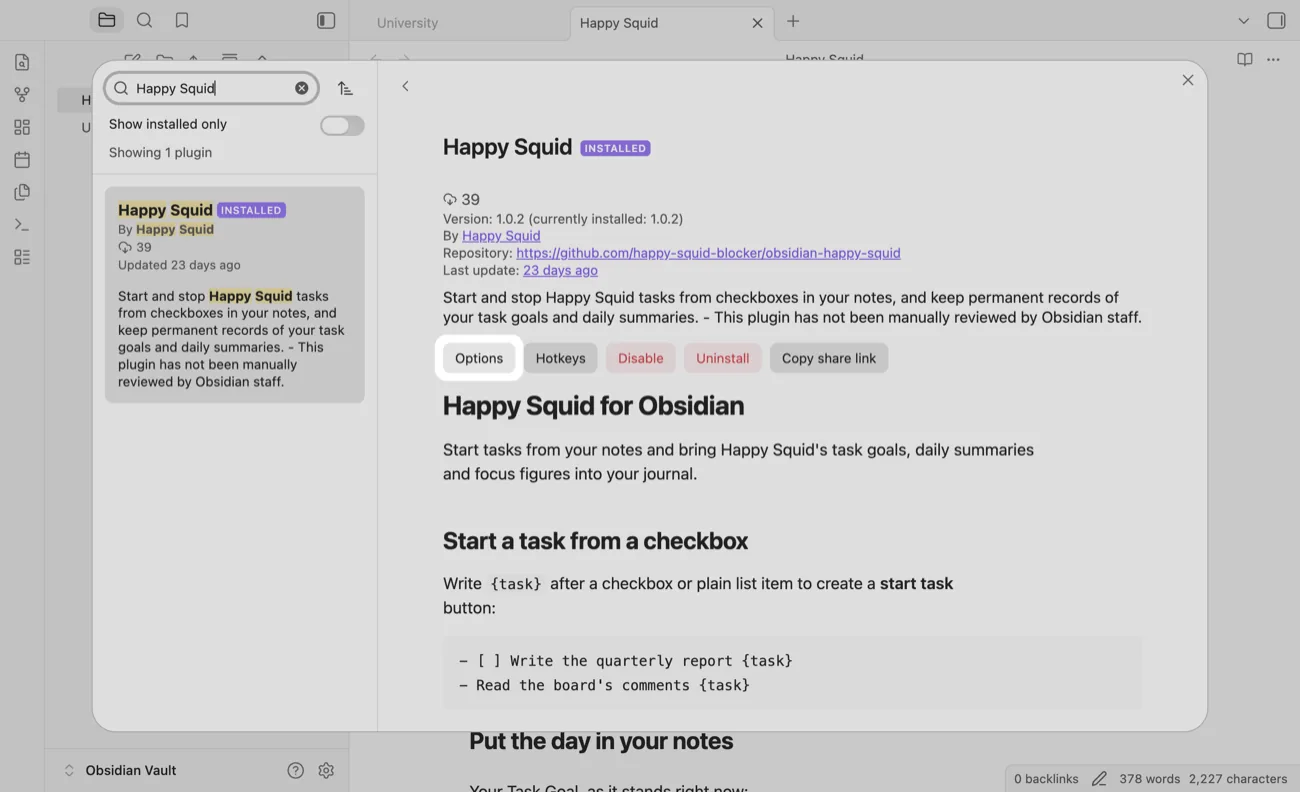
7. Click Options.
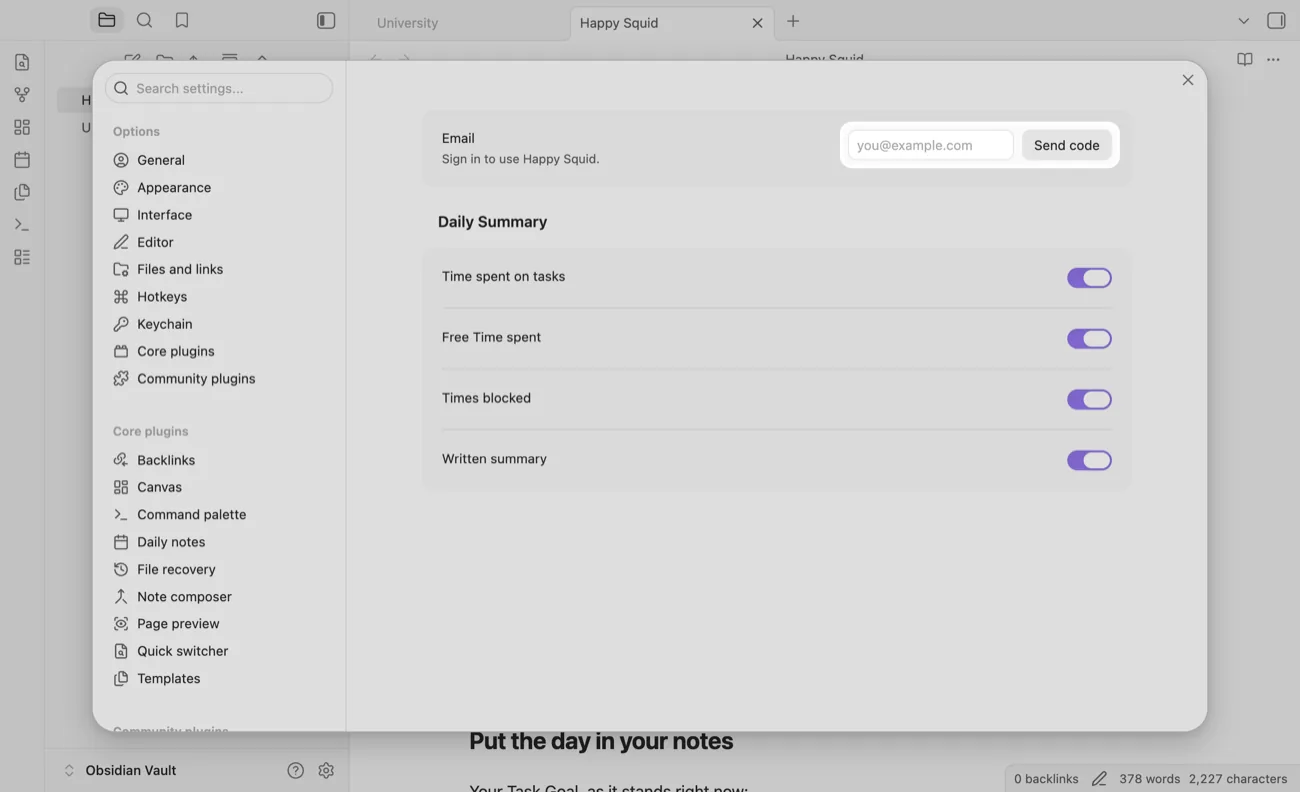
8. Enter the email address of your Happy Squid account and click Send code.
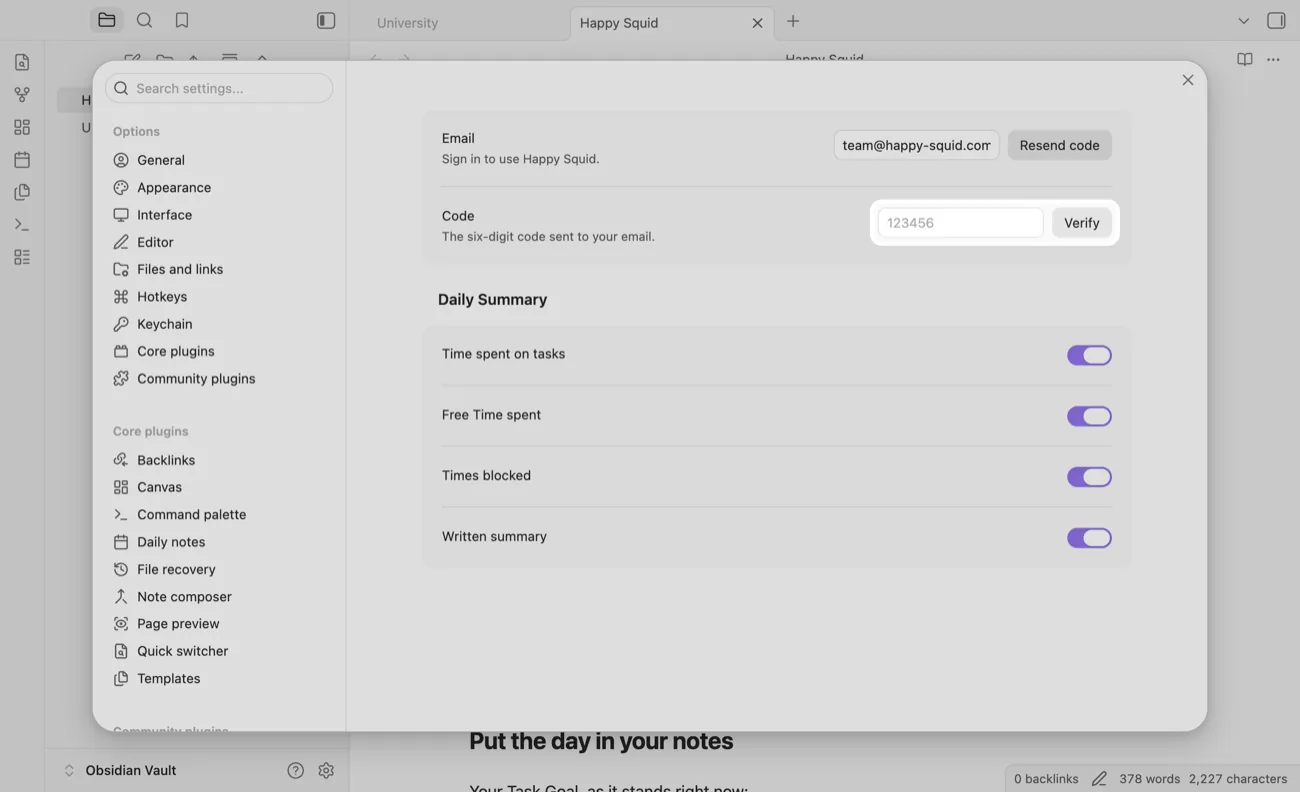
9. Enter the 6-digit code we email you and click Verify.
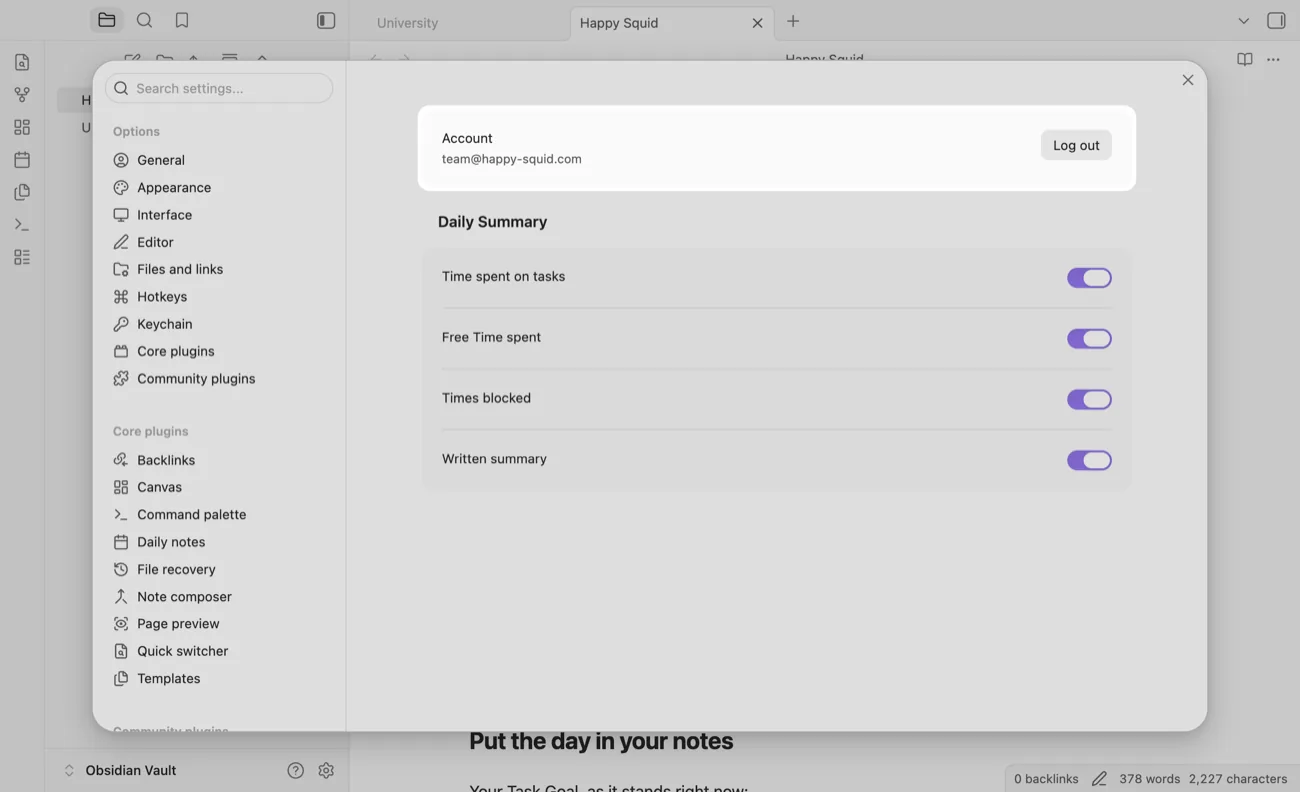
10. You're all set. Your email address now appears under Account.
Start and Finish Tasks from Obsidian
1. Write {task} at the end of any task in your notes. It turns into a start task button.
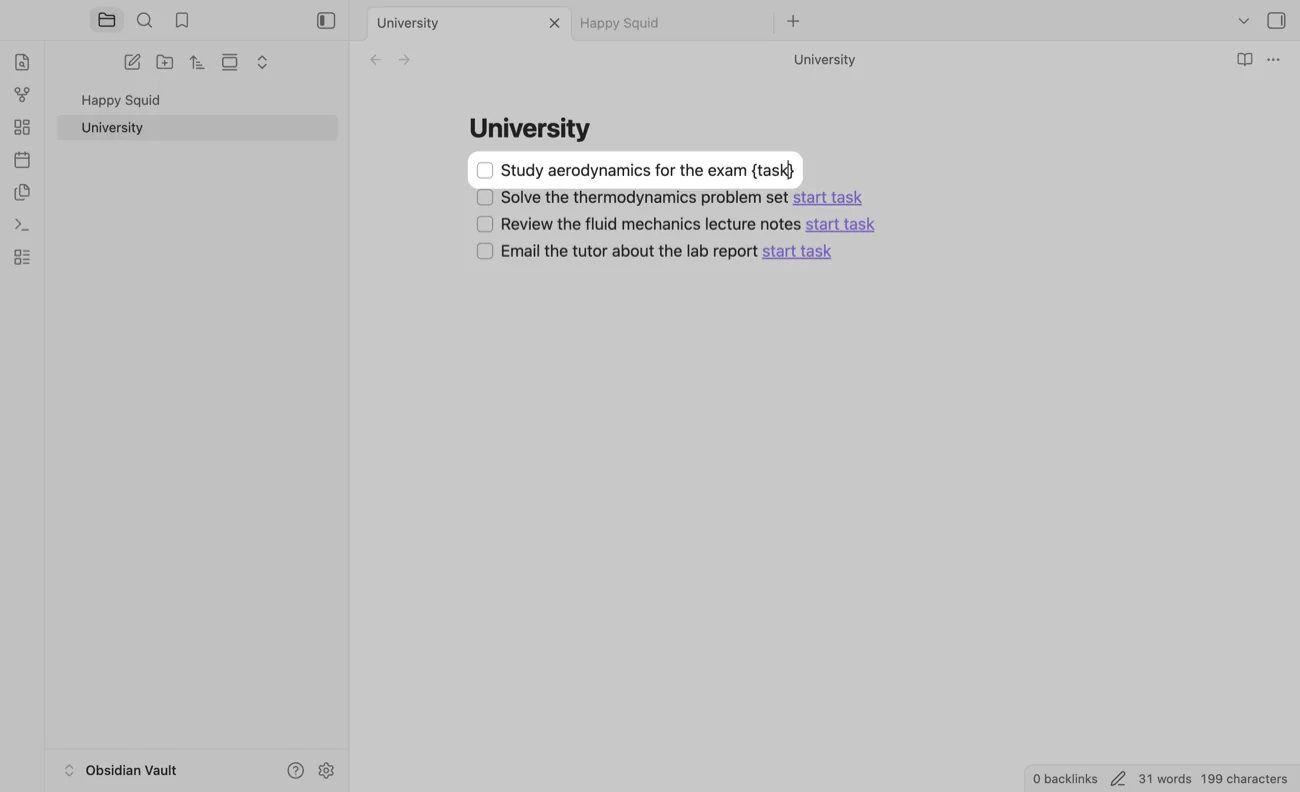
2. Click start task. It says starting… until Happy Squid has picked up your Task.
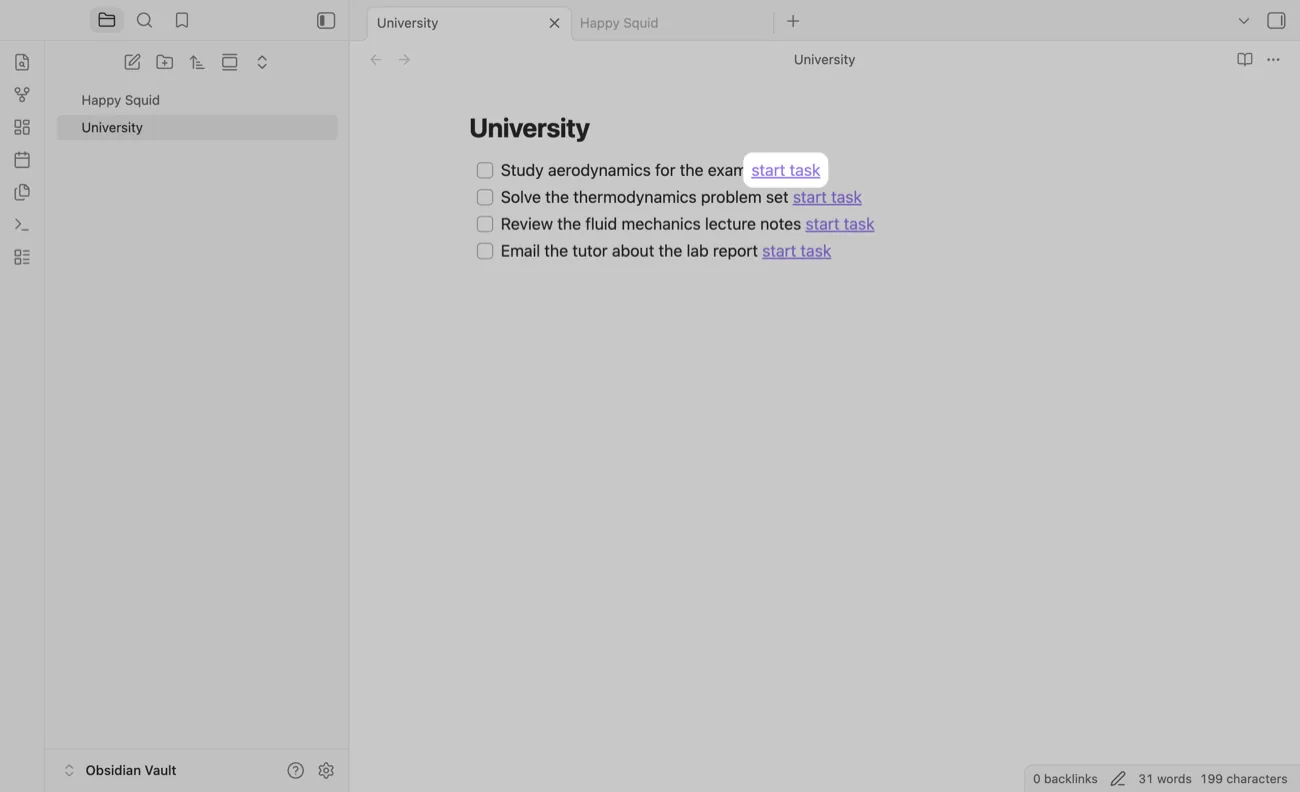
3. Your Task appears in Happy Squid, usually within a few seconds, and the button in your note changes to stop task.
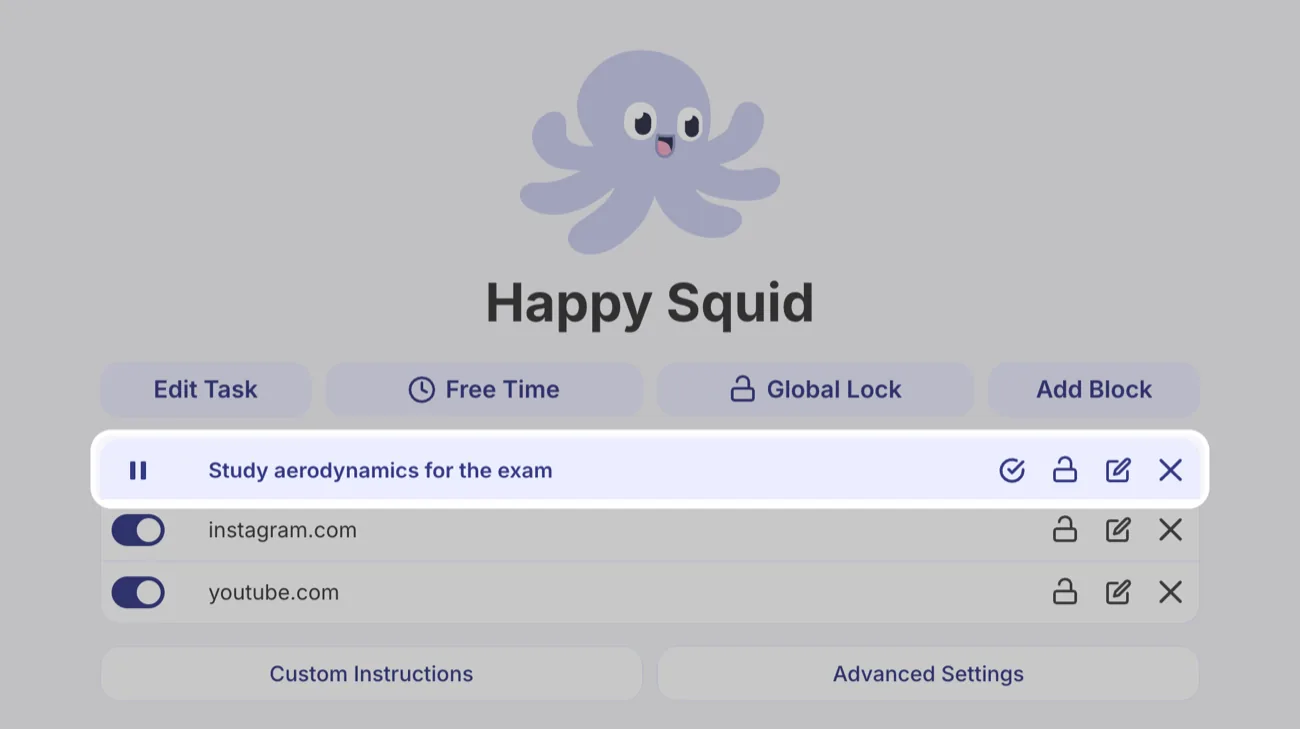
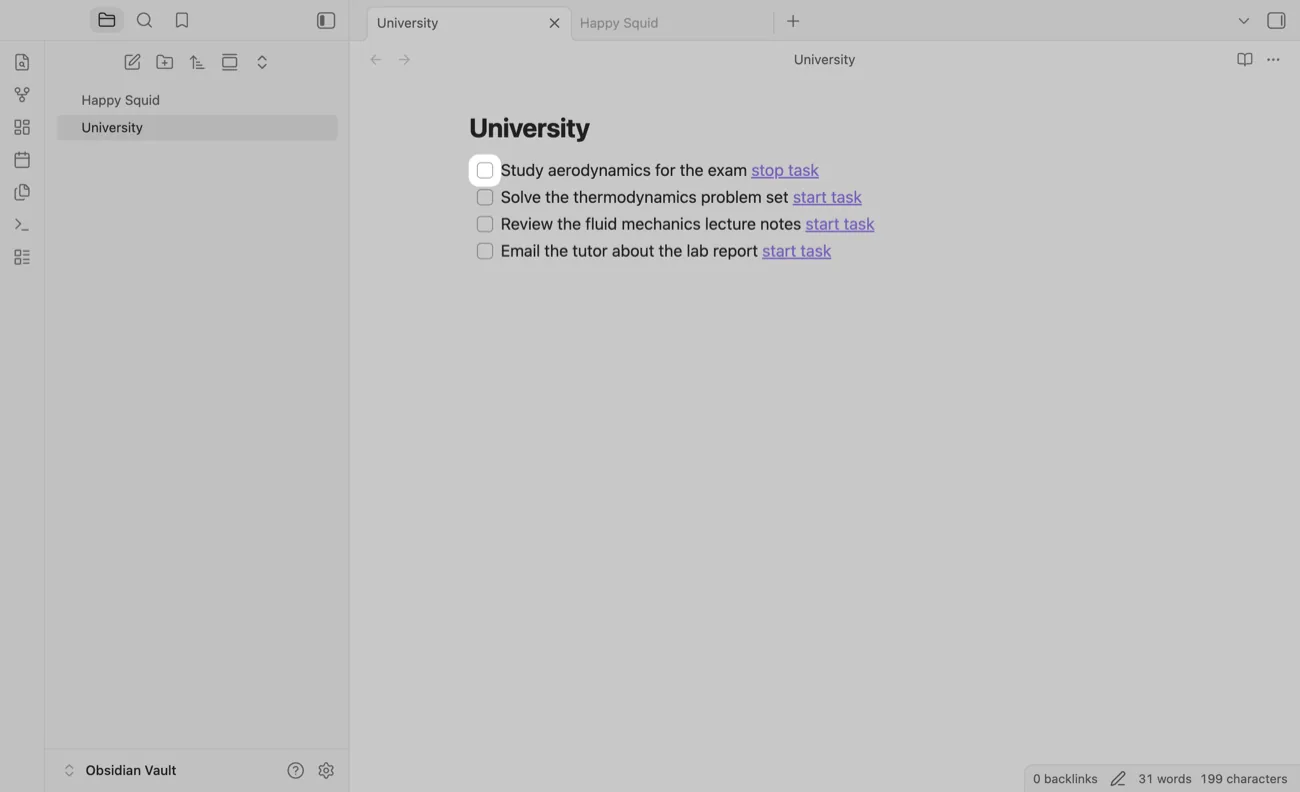
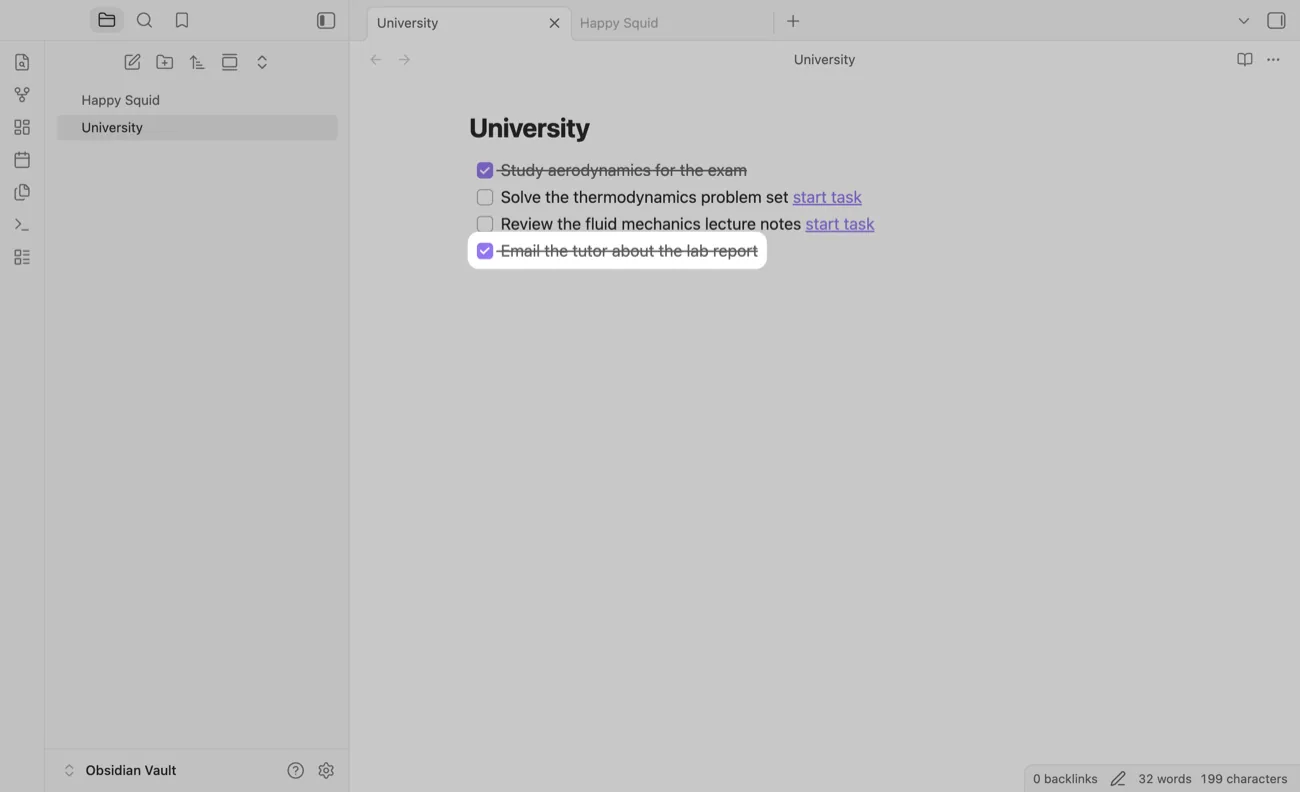
4. When you're done, tick the checkbox. The Task in Happy Squid ends within a few seconds. Clicking stop task ends the Task too, but leaves the checkbox open.
5. You can also finish your Task in Happy Squid. Click the ✓ next to your Task.
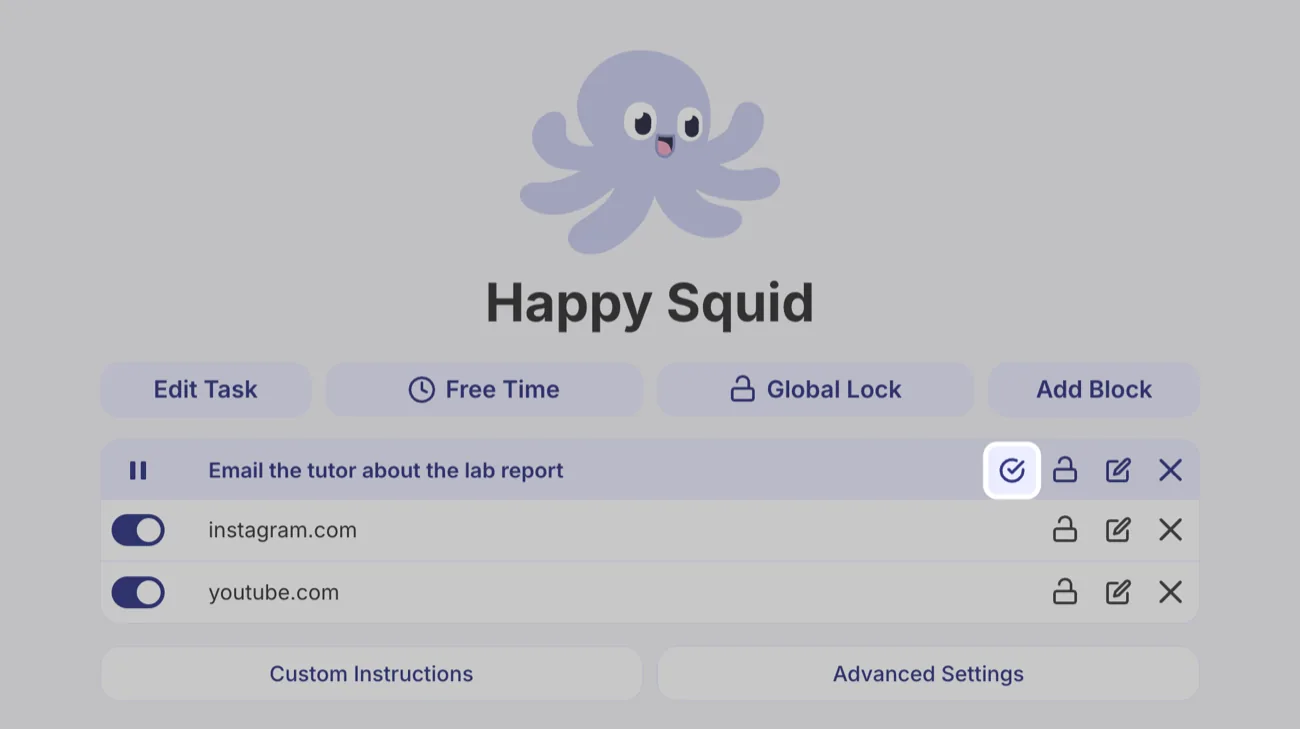
6. Click Complete.
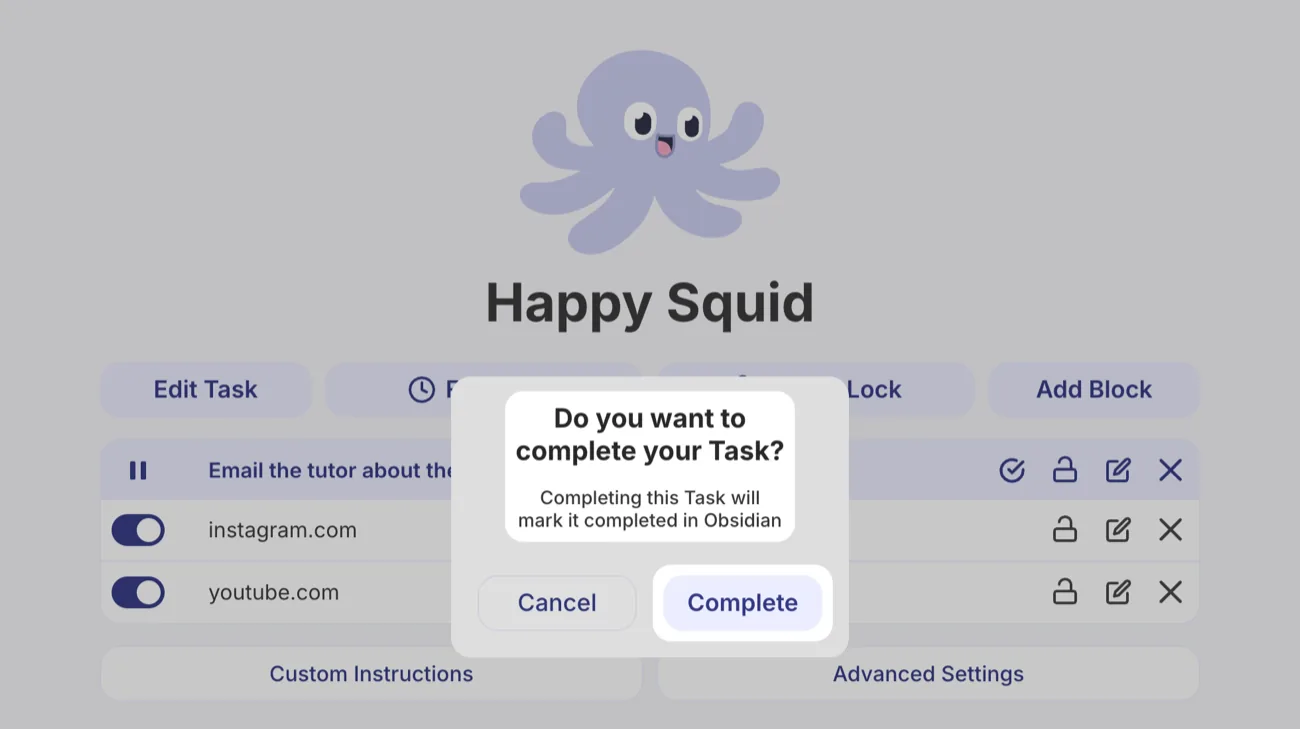
7. Happy Squid ticks the checkbox in your note within a few seconds.
Add Your Task Goal and Daily Summary
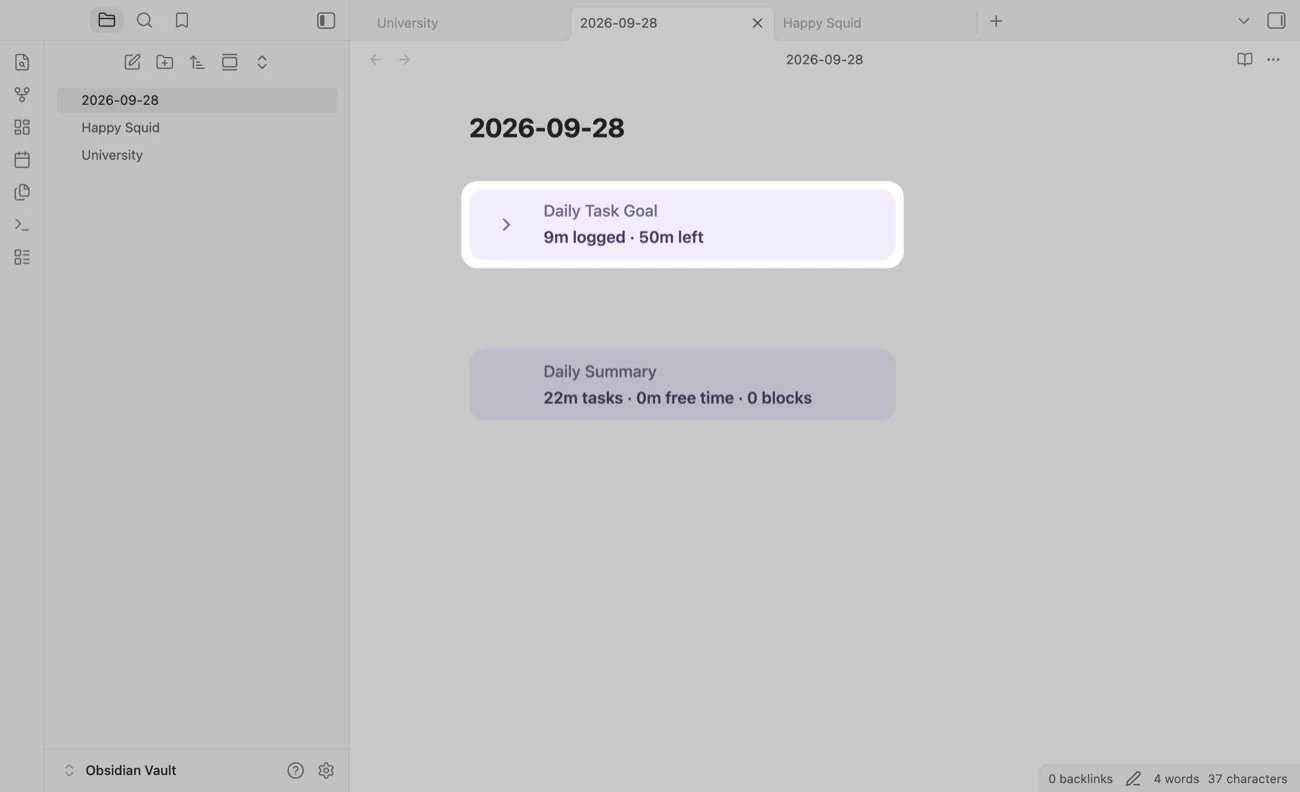
1. Write {taskgoal:today} on a line of its own. It shows how far along you are with your Task Goal, which you set in Happy Squid under Advanced Settings. Click the card to see the tasks you worked on that day.
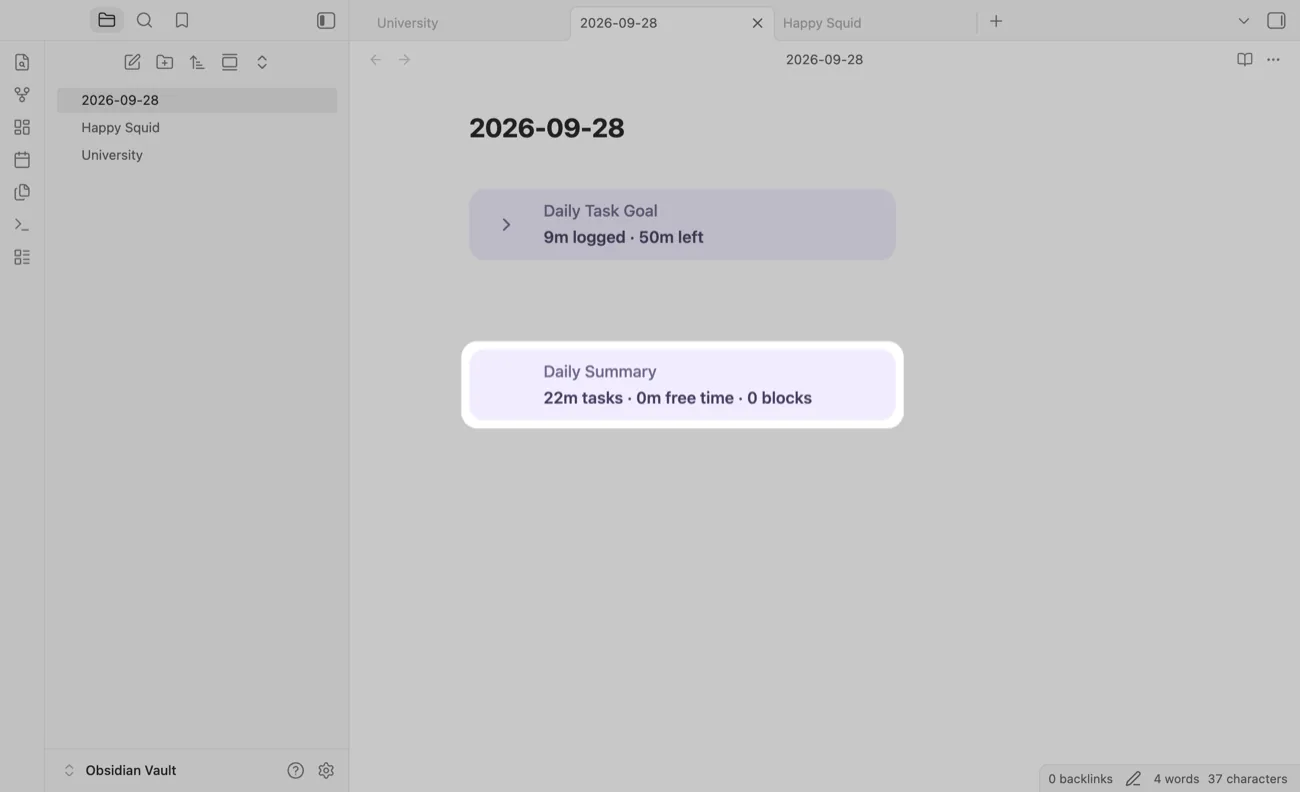
2. Write {daysummary:today} to see how long you worked on tasks, how much Free Time you used and how often Happy Squid blocked you that day.
Disconnect Happy Squid
1. In Obsidian, open Settings, choose Happy Squid under Community plugins and click Log out.
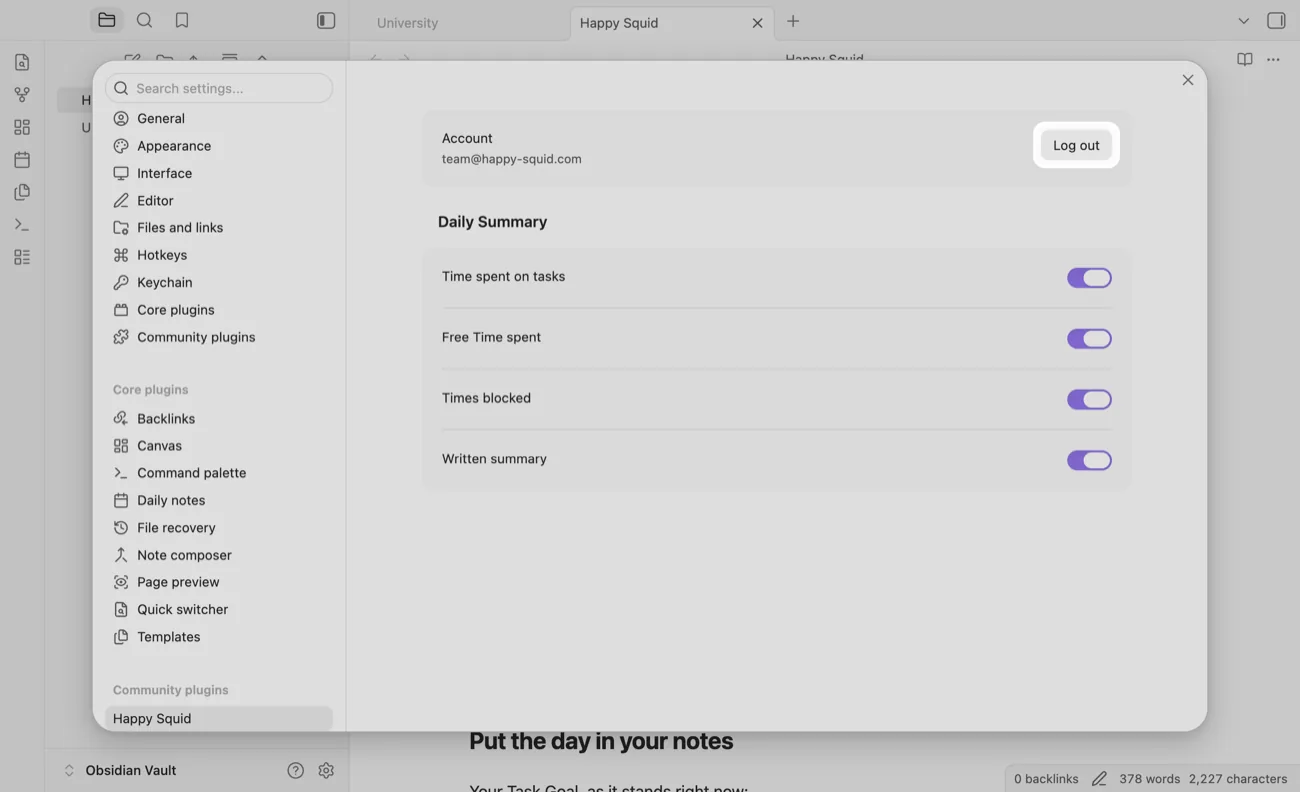
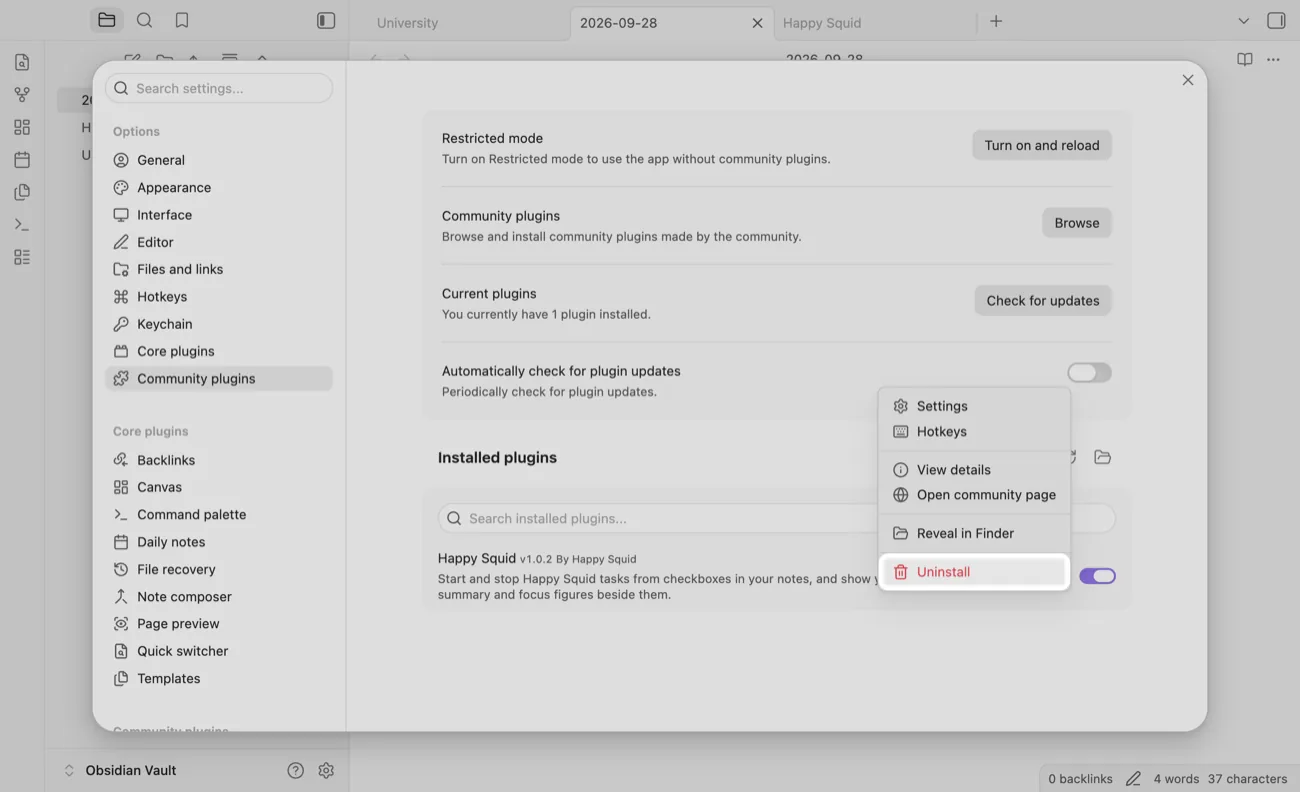
2. To remove the plugin too, choose Community plugins, click ⋯ next to Happy Squid and choose Uninstall.