Connect Raycast
Happy Squid Tasks enables you to block all unrelated websites and pages while working on a task. With the Happy Squid extension for Raycast, you can start, pause, and stop your Tasks without leaving Raycast. The time left on your current Task appears right in Raycast's search.
Set up the Integration
You only do this once. Setting up the extension takes about two minutes.
1. Make sure you have Raycast on your Mac and an active Happy Squid account. You need to be signed in on your Mac in the Happy Squid desktop app, or in the Happy Squid extension of your default browser.
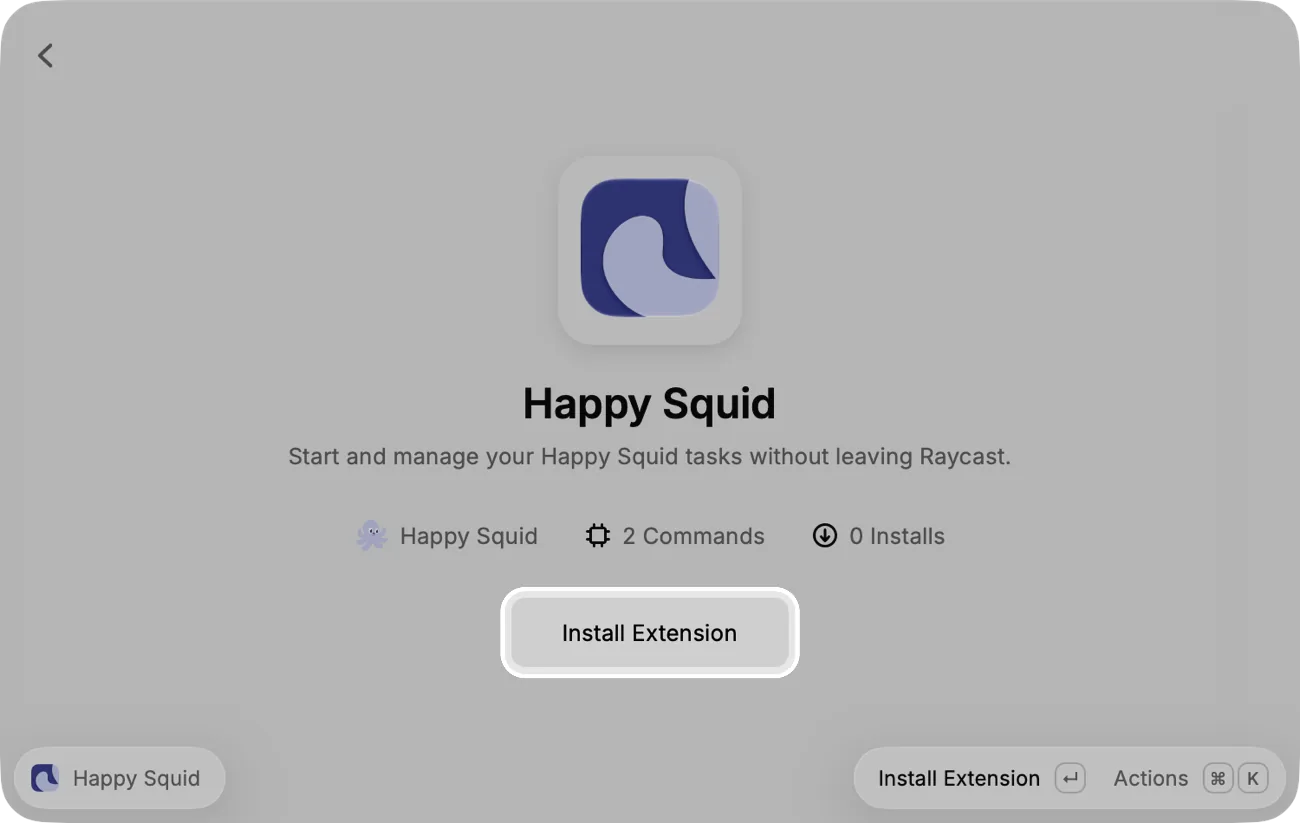
2. Open the Happy Squid extension in the Raycast Store and click Install Extension. Let your browser open Raycast, then click Install Extension there too.
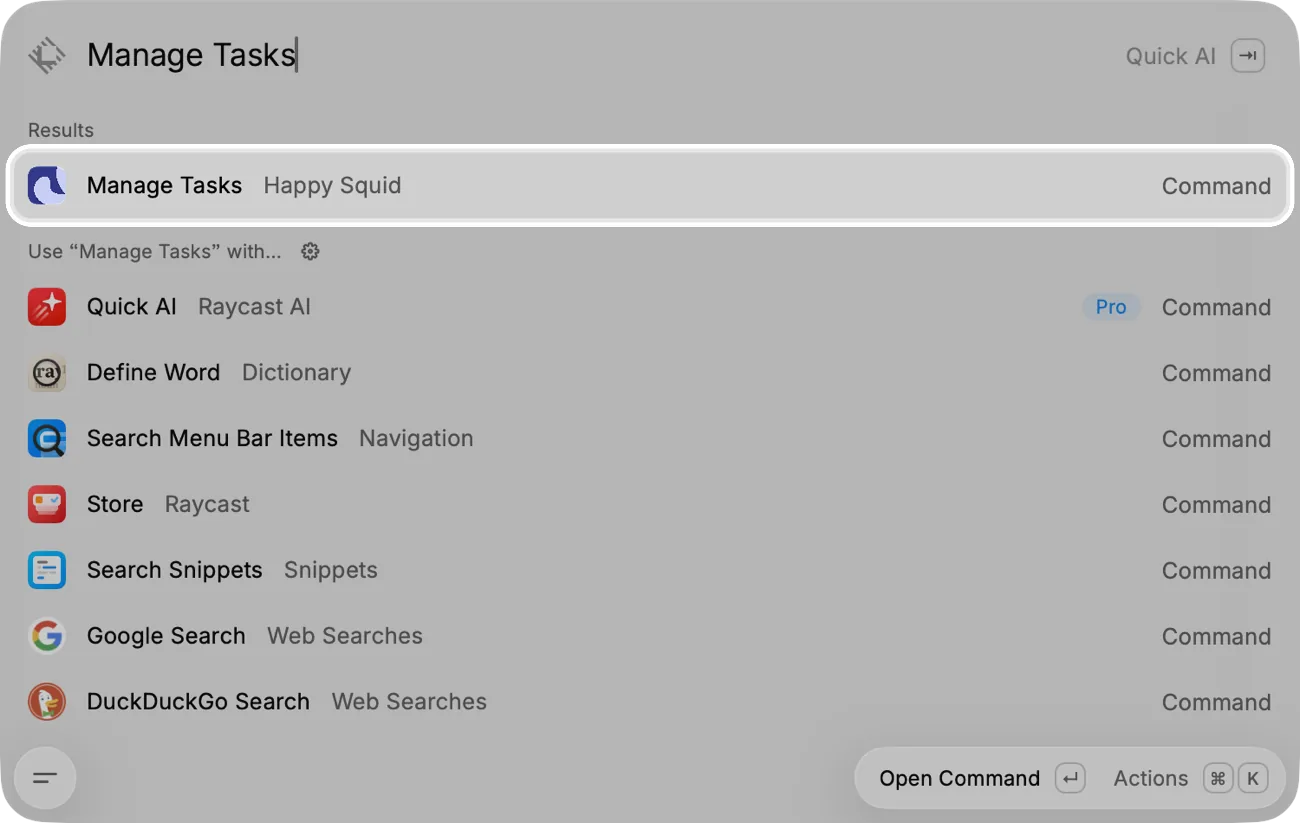
3. Open Raycast, search for Manage Tasks, and press Return.
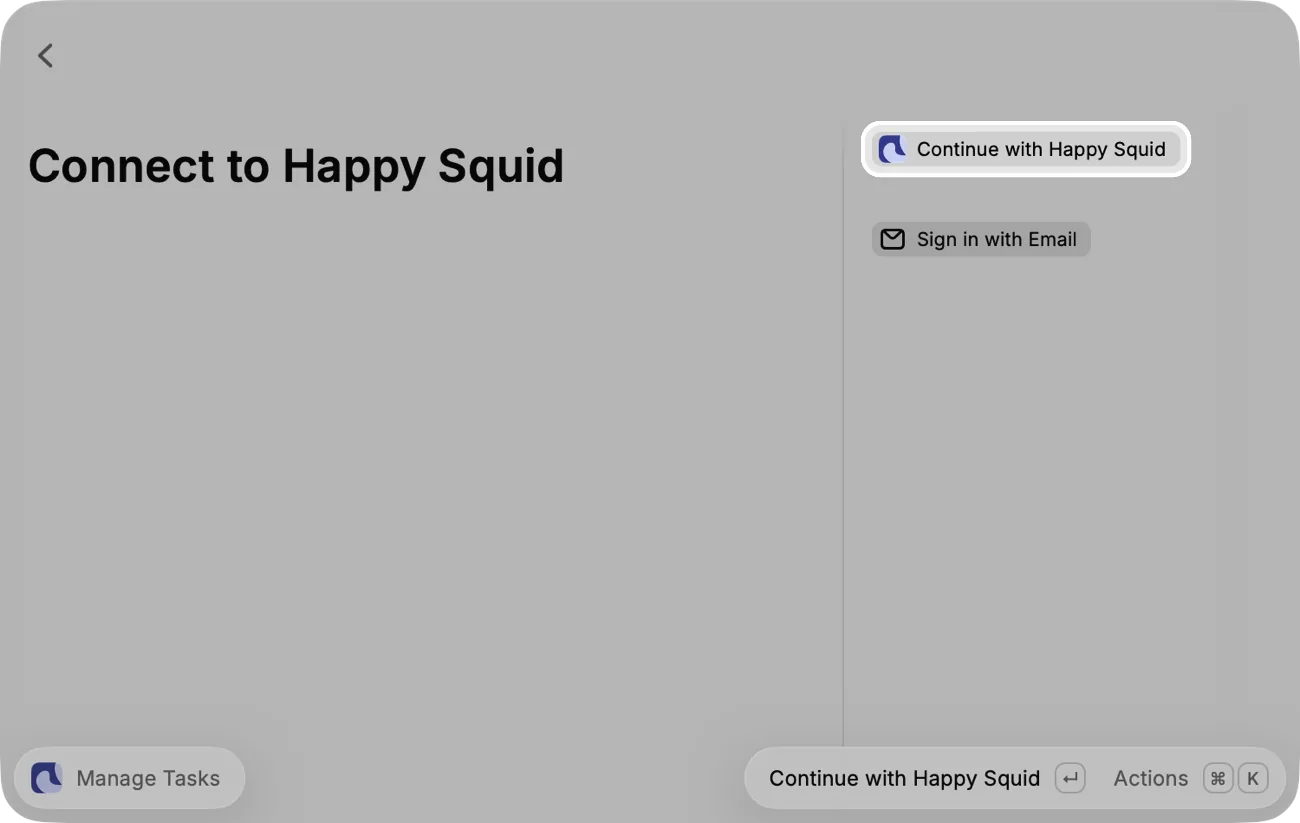
4. Choose Continue with Happy Squid.
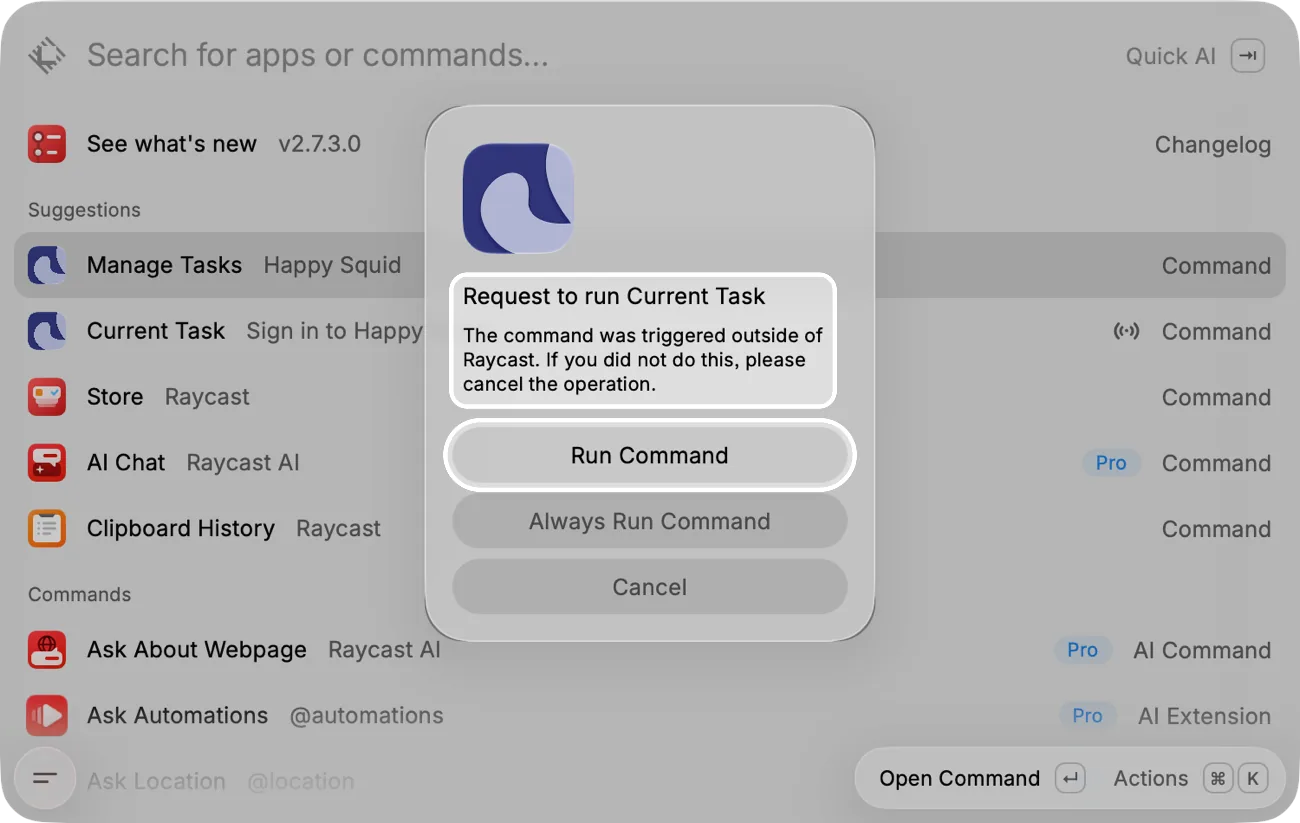
5. Happy Squid opens in your browser and asks you to connect Raycast to your account. Click Connect, then let your browser open Raycast. Raycast asks to run Current Task. Click Run Command, and Raycast signs you in and shows your Tasks.
Start and Finish Tasks from Raycast
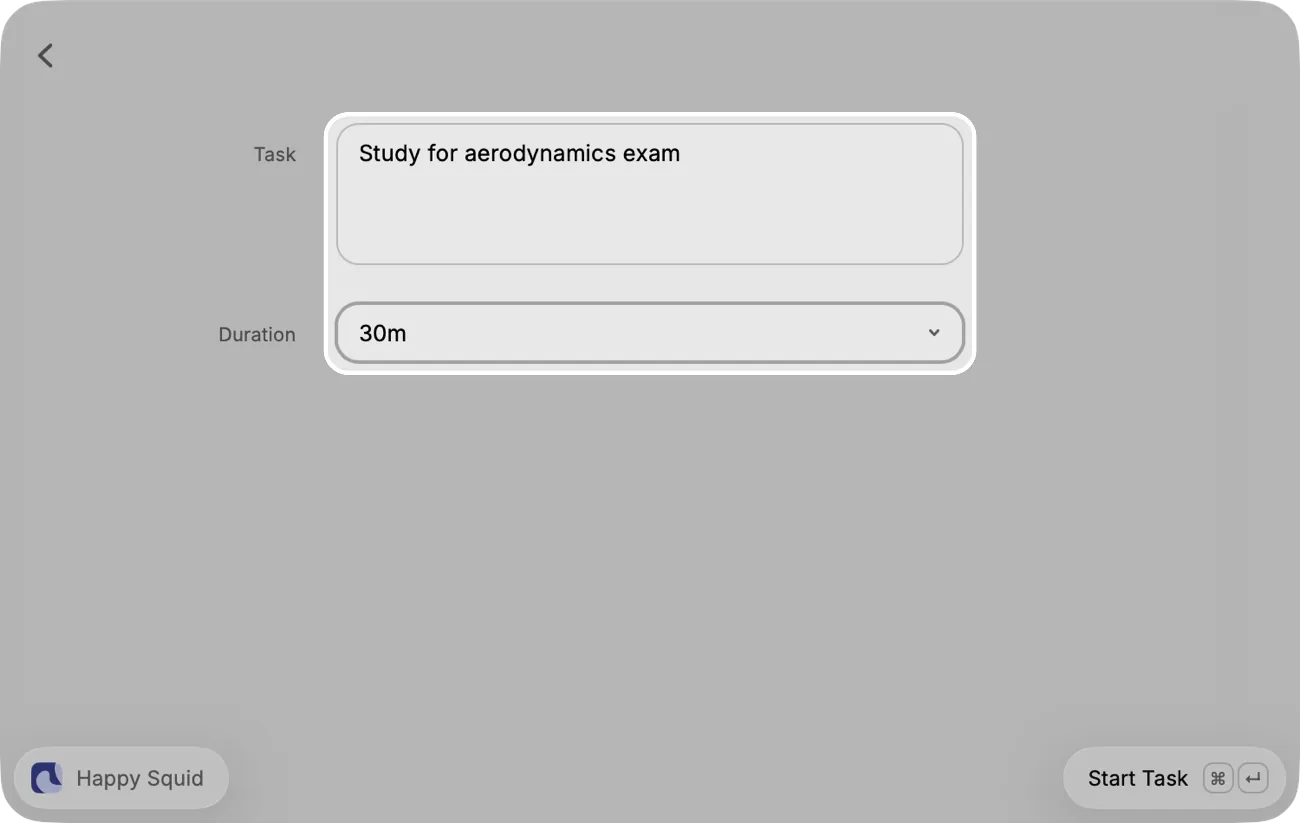
1. In Manage Tasks, choose New Task, write what you want to work on, pick a duration, and press Return. Happy Squid checks that your Task is productive and starts it.
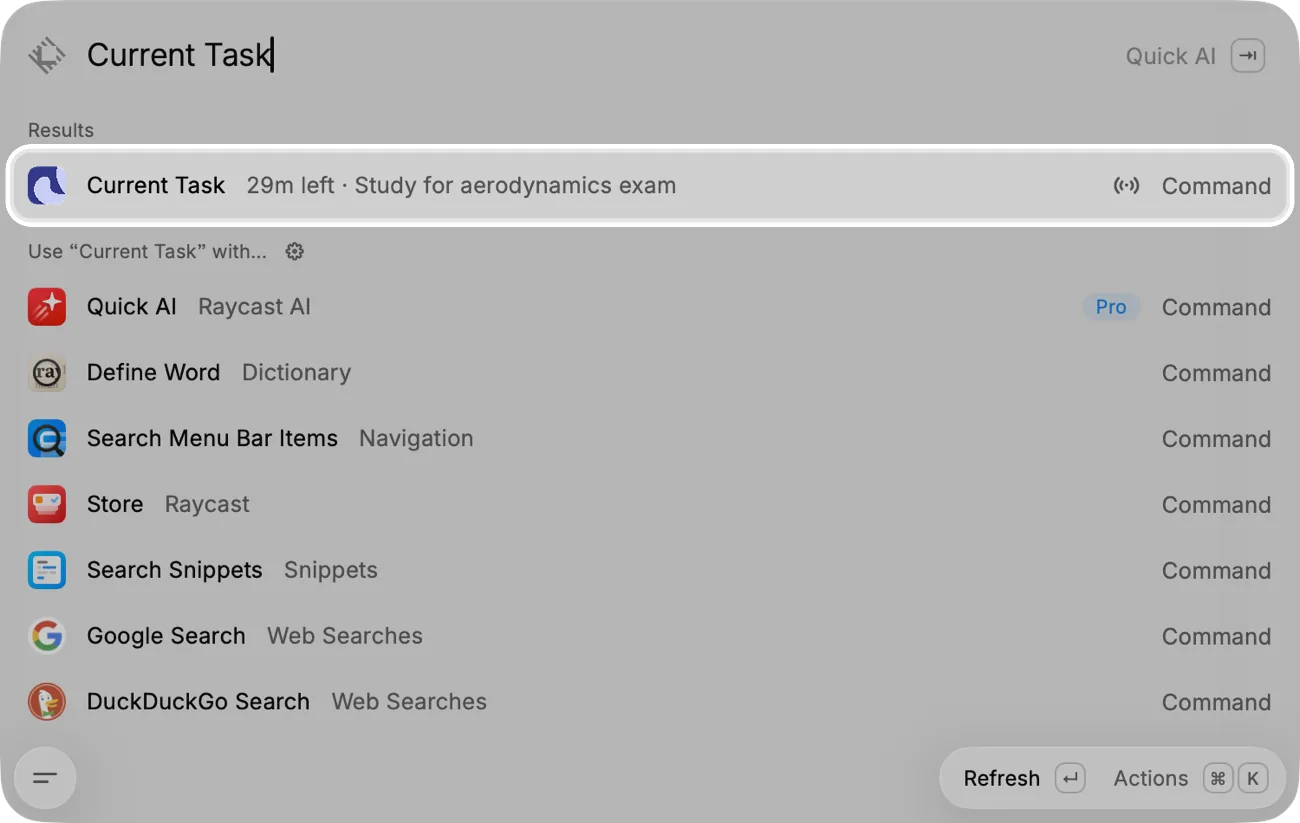
2. Current Task shows the time left on your Task right in Raycast's search. Press Return to open your Task.
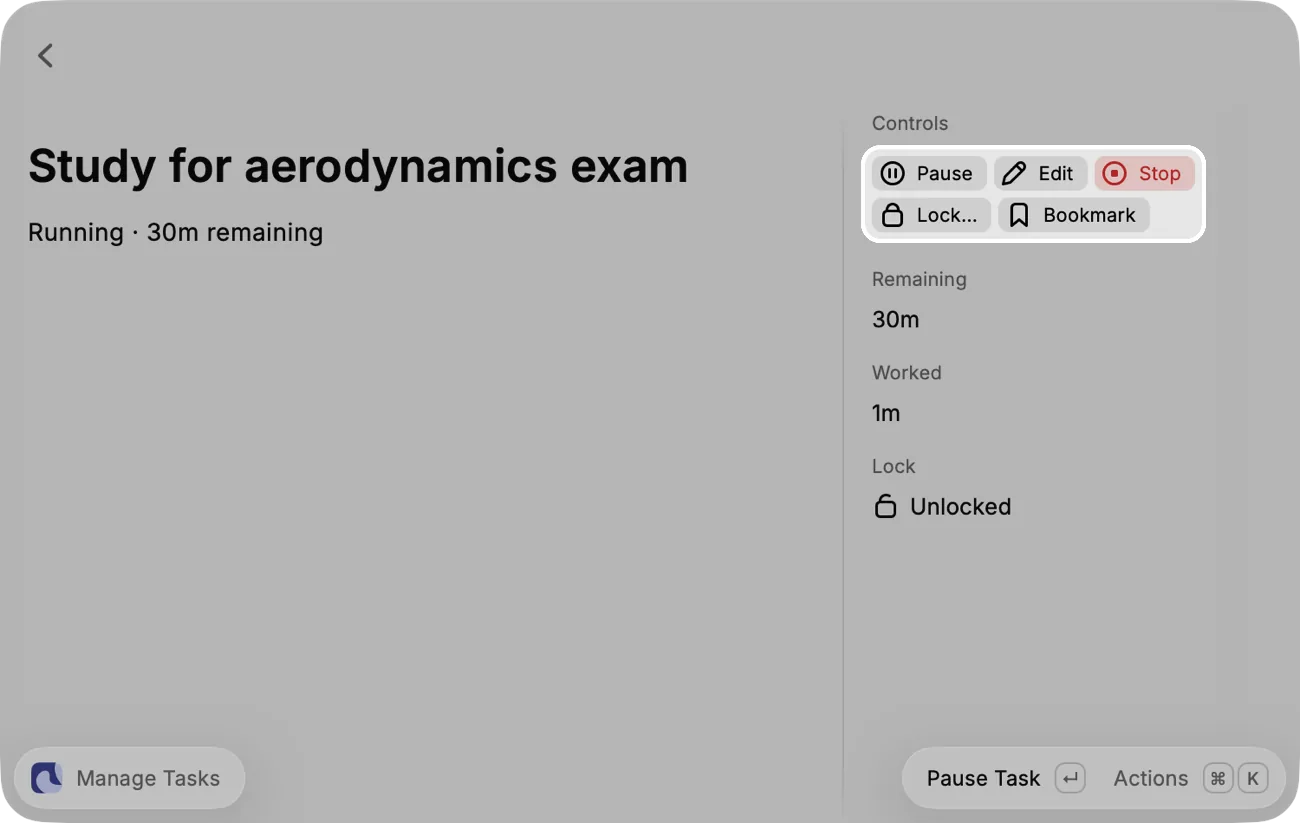
3. While your Task runs, you can Pause, Edit, Lock, or Bookmark it from the side panel. Your Task ends on its own when its time is up. To end it early, click Stop and confirm it.
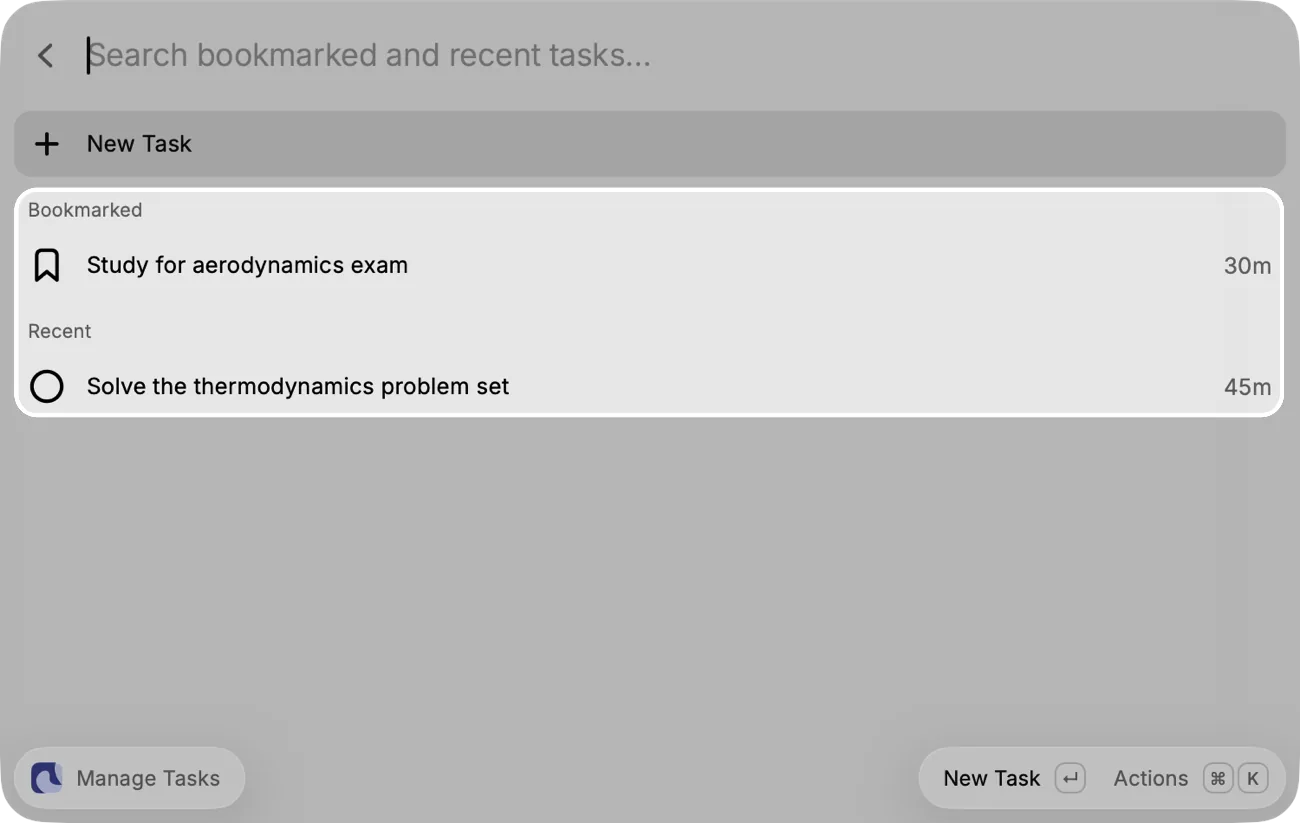
4. Your bookmarked and recent Tasks are listed under New Task, ready to start again.
Disconnect Happy Squid
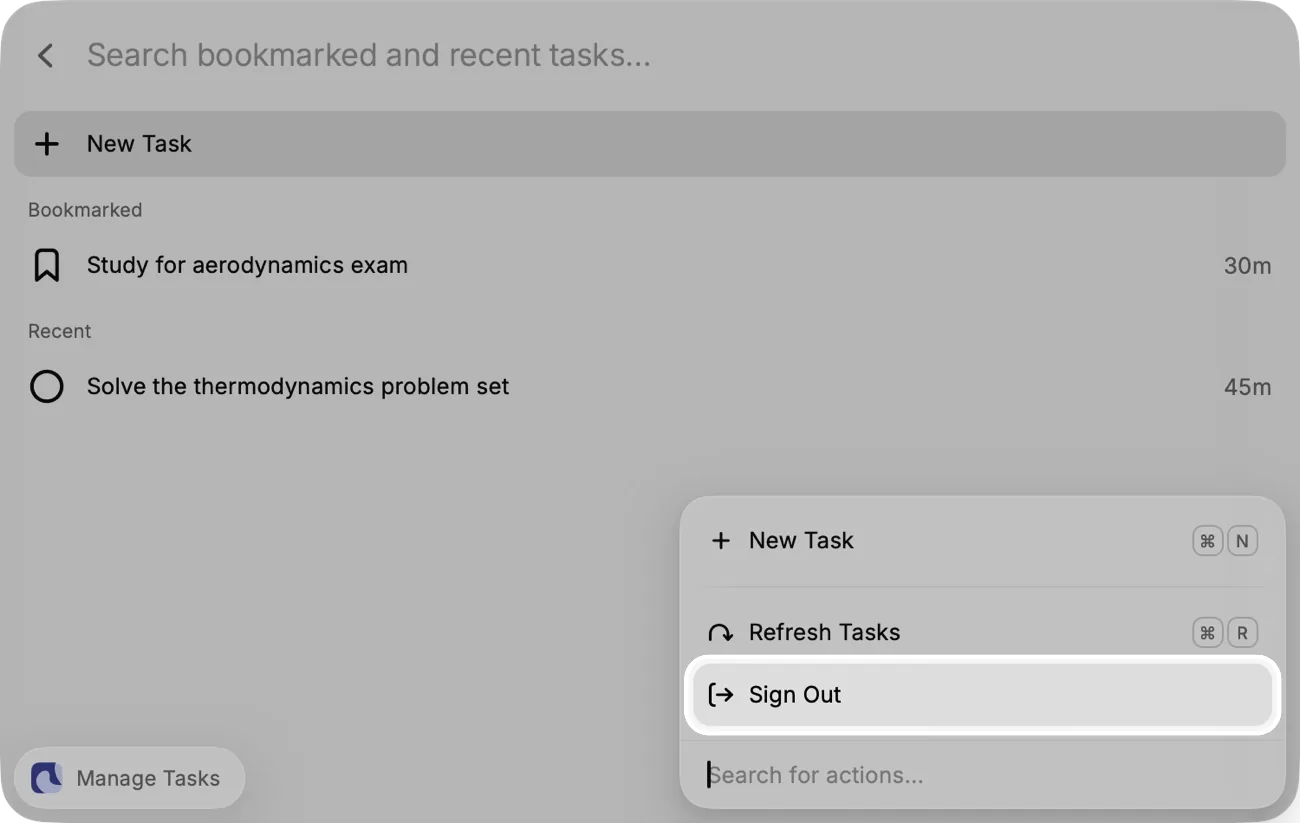
1. In Manage Tasks, press ⌘K and choose Sign Out. This signs out Raycast only, not your other devices.
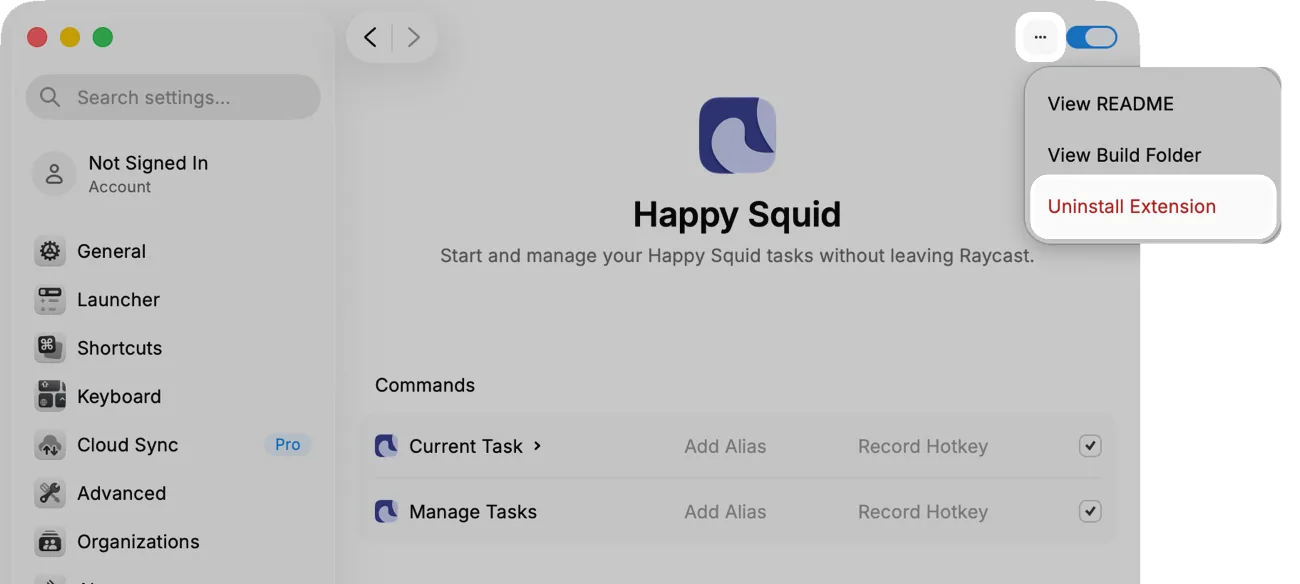
2. To remove the extension too, open Raycast and press ⌘,. Search the settings for Happy Squid and open it, then click ⋯ and choose Uninstall Extension.